

If you forget your script while recording, struggle to speak naturally to the camera, or do not want to memorize long texts, a free teleprompter app can make video production much easier.
Pratic Prompter works on iPhone, iPad, Android phones and tablets. You can download the app free of charge, test its main features and start recording even without a physical teleprompter device.
What Does a Free Teleprompter App Do?
The app scrolls your prepared script on the screen at a speed you choose. This helps you deliver a clear, structured message without memorizing every sentence. It is useful for YouTube videos, Instagram Reels, TikTok, online courses, product presentations, interviews and corporate communications.
Can Pratic Prompter Be Used for Free?
Yes. You can download Pratic Prompter on iOS and Android and try the app before moving to the full version. This gives you time to test the scrolling speed, text size and recording workflow with your own scripts.
How to Download the App
iPhone and iPad users can download Pratic Prompter from the App Store. Android users can download it from Google Play.
How to Use Pratic Prompter
- Open the app and tap the “+” button.
- Add a title and paste your script.
- Save the text and press Play.
- Select the appropriate prompter mode.
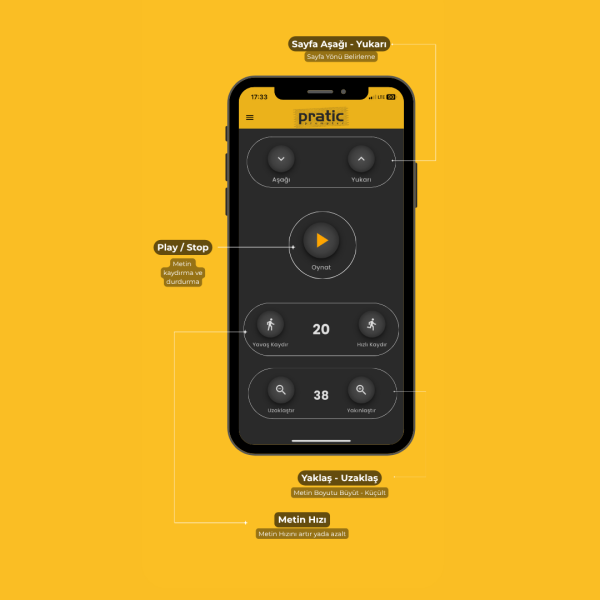
- Adjust font size and scrolling speed.
- Start your recording.
For detailed setup instructions, visit the Pratic Prompter setup guide.
Can You Use a Teleprompter with Only a Phone?
Yes. In Mobile Prompter mode, your script appears close to the phone’s front camera while the same device records the video. This is ideal for solo creators, educators, consultants and businesses producing short-form social media content.
Using the App with a Physical Teleprompter
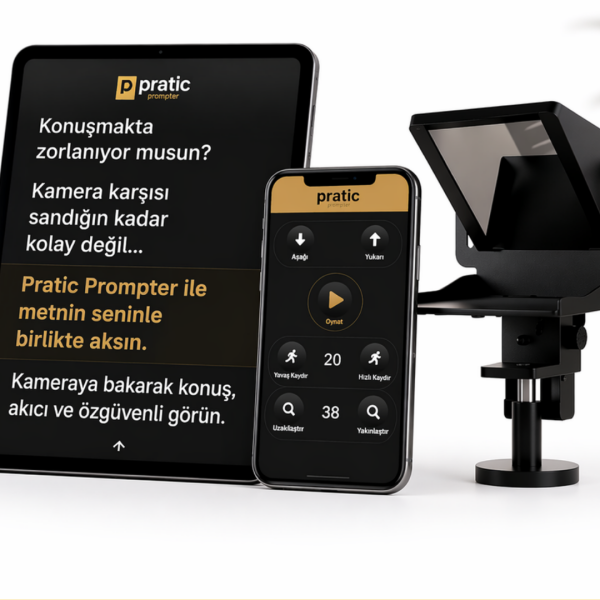
When your phone or tablet is placed in a physical teleprompter, select Touch Screen mode. The text is reflected on the beam-splitter glass while the camera records through it. You can continue looking toward the lens and maintain stronger eye contact with your audience.
Remote Control Options
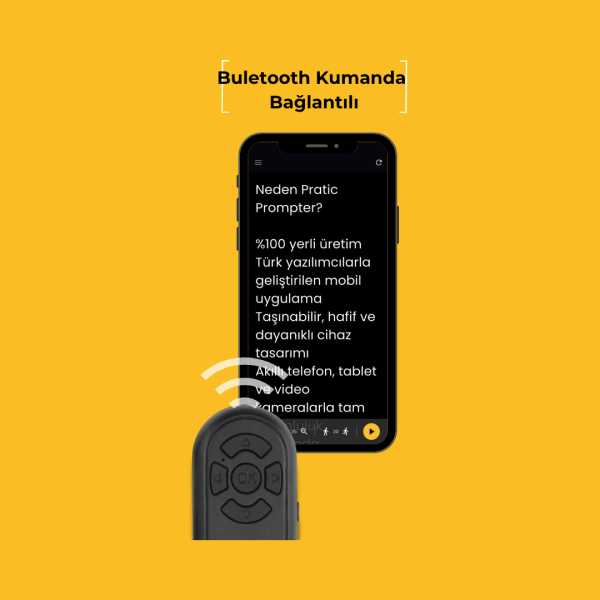
Pratic Prompter can be controlled from a second phone, tablet or computer. You may also use a compatible Bluetooth hand remote or foot pedal to start, stop and adjust the script during recording.
Tips for Natural Results
- Write short, conversational sentences.
- Keep the text area close to the camera lens.
- Match scrolling speed to your natural speaking pace.
- Use a readable font size without making lines too long.
- Read the script aloud before recording.
A well-prepared script and the right settings help reduce retakes, improve eye contact and make your videos look more professional.
View the Pratic Prompter app or explore our teleprompter devices.
You can also watch the Pratic Prompter setup and usage videos for step-by-step guidance.
What a Teleprompter App Does
A teleprompter app displays your script in a controlled, continuously scrolling format so you can speak while looking toward the camera instead of repeatedly checking paper notes. When the phone or tablet is used with a beam-splitter teleprompter, the text is reflected directly in front of the lens. The camera does not record the text, but the presenter can read it clearly.
This method is useful for YouTube videos, Reels, online courses, product presentations, news-style recordings, corporate announcements and educational content. It reduces forgotten sentences and repeated takes while helping the speaker maintain a consistent tone and structure.
How to Start on iPhone or Android
Install Pratic Prompter from the App Store or Google Play, create a new script and paste your prepared text. Before recording, choose a readable font size, set the line spacing and test the scrolling speed. The ideal speed is not the fastest setting; it is the speed that lets you speak naturally, pause between ideas and emphasize important words.
Place the phone as close to the camera lens as possible if you are recording without a physical teleprompter. For longer scripts or greater camera distance, use a teleprompter device so the reflected text remains centered in front of the lens.
Preparing a Script That Sounds Natural
Write for the ear, not for the page. Use short sentences, familiar words and clear transitions. Break long paragraphs into small blocks, mark pauses and keep one main idea in each paragraph. Reading the script aloud once before recording reveals sentences that look correct on screen but sound artificial when spoken.
A strong opening should explain the benefit immediately. The middle section should develop the subject step by step, and the final section should contain one clear conclusion or call to action. This structure makes the scrolling text easier to follow and improves audience retention.
Font Size, Speed and Reading Distance
Font size depends on the distance between the presenter and the screen. Increase it when the camera is farther away, but avoid extremely large letters that force the eyes to move from side to side. Keep the active reading area close to the center of the lens and use comfortable contrast.
Start with a slightly slower scroll and increase it after rehearsal. If you frequently catch up with the text, the speed is too slow; if you skip words or lose expression, it is too fast. A Bluetooth remote or second-device control provides more freedom because you can pause, continue or adjust the flow without touching the screen.
Recording Without Looking Like You Are Reading
Do not focus on individual letters. Read in short meaning groups and keep your facial expression connected to the message. Small natural head movements are acceptable, but wide eye movements reveal that the text area is too broad or that you are standing too close to the screen.
Rehearse names, numbers and technical terms separately. Add line breaks before important points and allow yourself short pauses. The goal is not to finish the text without stopping; the goal is to speak as if you are explaining the subject directly to one person.
Using the App with a Physical Teleprompter
A physical teleprompter places beam-splitter glass in front of the camera. The phone or tablet lies below the glass and the mirrored script appears in the presenter’s line of sight. Because the lens records through the transparent glass, the audience sees continuous eye contact rather than downward glances.
Choose a phone teleprompter for compact, mobile productions and a tablet teleprompter when you need a larger reading surface or greater distance. Confirm that the device is centered, the dark cover blocks unwanted reflections and the camera lens has a clear view through the glass.
Common Problems and Practical Solutions
If the text reflection is reversed, enable mirror mode. If the reading becomes difficult, increase the font size and contrast before changing the speed. If viewers notice eye movement, narrow the text area, move slightly farther back or reduce the number of words shown on each line.
Notifications can interrupt a recording, so enable airplane mode when possible and charge the device in advance. Clean the screen and teleprompter glass with a suitable microfiber cloth. A few minutes of preparation prevents most technical interruptions.
Who Benefits Most?
Content creators, trainers, psychologists, consultants, sales teams, executives, educators and journalists can all use a teleprompter app. It is especially valuable when wording must remain accurate, when the video contains detailed information or when several versions of the same presentation must be recorded consistently.
Frequently Asked Questions
Can I use it without buying a teleprompter?
Yes. You can record directly with your phone while displaying the script close to the lens. A physical teleprompter becomes more helpful as the script, shooting distance or production quality increases.
Does it work on both iOS and Android?
Yes. Pratic Prompter is available for iPhone and Android, and the relevant download buttons are provided below.
Will the camera record the reflected text?
No. With correct installation, the presenter sees the reflection while the camera records through the beam-splitter glass.
App Screens and Video
Ready to Record More Professional Videos?
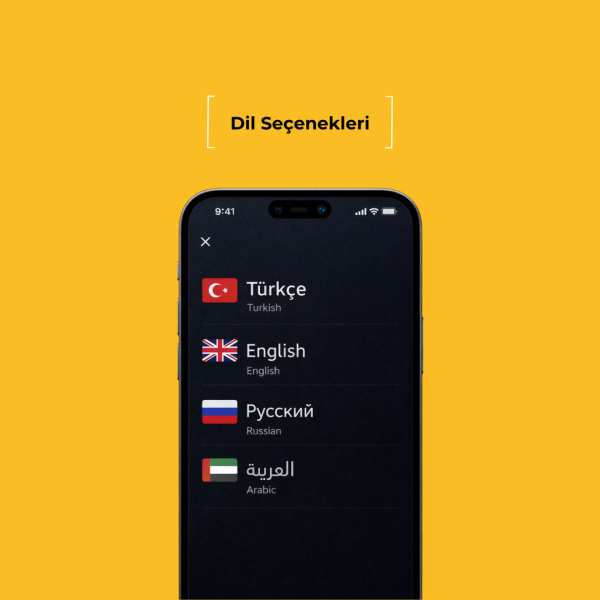
The product page is in Turkish. For product selection, current prices and delivery within Türkiye, contact us on WhatsApp in your own language.